In Class Excersise: Working with Excel Files in Python
In this class exercise, we will learn how to work with Excel files in Python. We will read Excel files into pandas dataframes, write dataframes to Excel files, and perform some basic data manipulation tasks. To begin, download the starter notebook here.

Rename it '(Your_Name)_Class_Python_and_Excel.ipynb'. Then follow the instructions below. Create and organize your code in cells in the notebook as you go.
Part 1: Provo River Streamflow Data
In Unit 1, we worked with a set of streamflow data from gauges on the Provo River. In this exercise, we will import a copy of that data in Excel format, perform some data analysis, and write the results back to a new Excel file.
- Download the Excel file from streamflow_data.xlsx.
- Follow the instructions for Part 1 in the notebook.
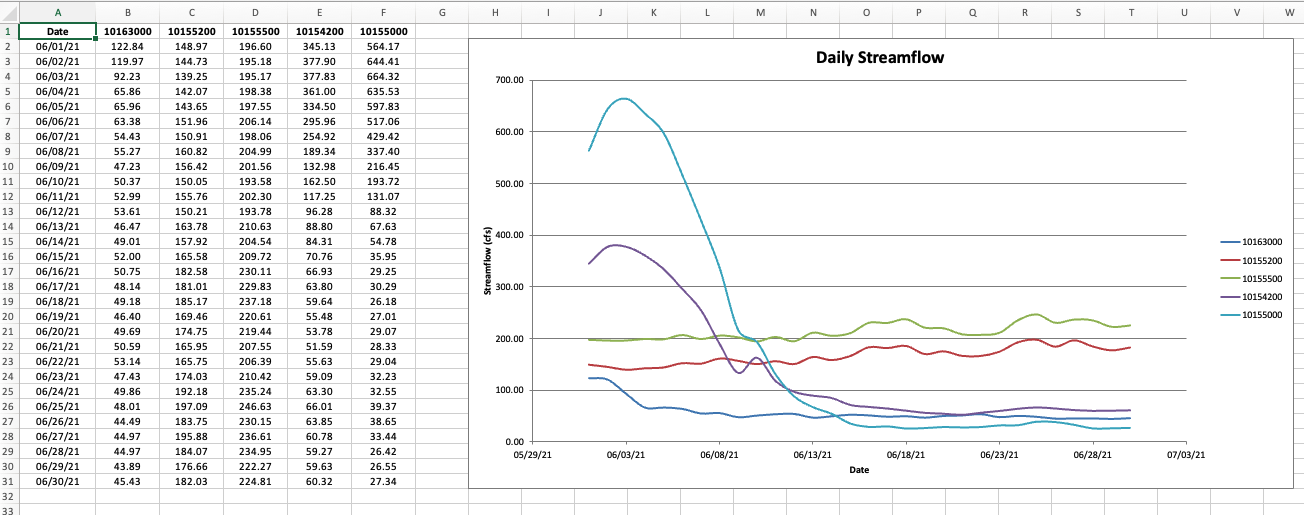
When finished, Your Excel file should look similar to the one below:
EXTRA
If you get it done early, here are some things you can play with:
1) When you export the dataframe, it applies a default datetime style. If you try to format the column later with a proper "yyyy-mm-dd" format, it does not override the default date format. There are number of ways to fix that. See if you can figure that out with the help of AI. 2) Change the zoom level on the sheet 3) Experiment with cell formatting (widths, fonts, background colors, etc.)
Part 2: Accident Database Analysis
In this part of the exercise, we will work with a dataset of workplace accidents that we used in Unit 1. We will read the data from an Excel file, perform some data analysis, and write the results back to a new Excel file along with some column charts.
- Download the Excel file from accident_database.xlsx
- Follow the instructions for Part 2 in the notebook.
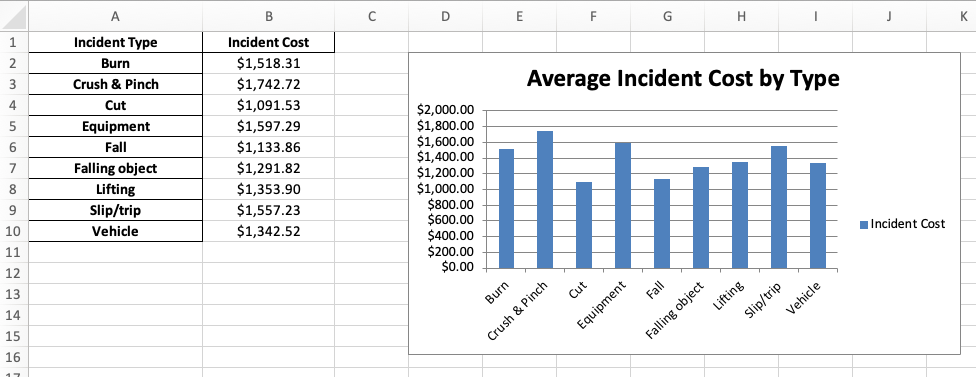
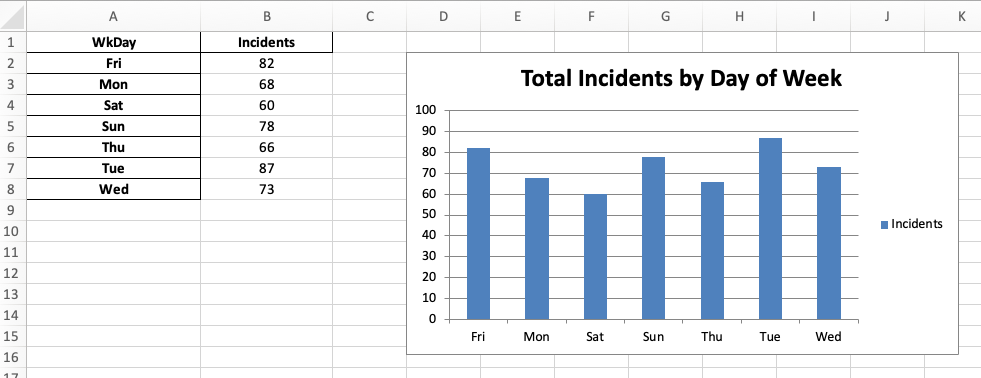
When finished, Your Excel file should look similar to the one below:
If you get it done early, here are some things you can play with:
1) Turn off the display of the grid lines in the background. 2) Change the zoom level on each sheet 3) See if you can figure out how to have bold lines on cells containing data, but none of the other cells. This is a little tricky, but there is a way to do it.
Turning in/Rubric
REMINDER - For this class, you will only turn in the links to your Colab notebooks. You will get a 0 for this assignment if you turn in a python file or a link that is not correct, wrong assignment, or does not give editor permission.
Rubric:
| Item | Points Possible |
|---|---|
Total |
5 |
The following is not a part of the rubric, but specifies how you can lose points. For example: if you fail to share your link correctly.
| Reasons for Points Lost | Amount |
|---|---|
| Link shared incorrectly | -10% |
| Turned in late (per week) | -10% (up to -50%) |